Tool Mentor: Viewing the History of a Defect Using Rational ClearQuest
Purpose
This tool mentor describes how the Rational ClearQuest administrator can set up the ClearQuest defect form to include a History control that enables ClearQuest users to view and track the history of defects.
This section provides links to additional information related to this tool mentor.
Overview
Records move through a lifecycle, from submission toward resolution. In ClearQuest, each stage in this lifecycle is a “state”, and each movement from one state to another is called a “state transition”.
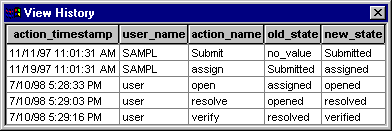
Within the ClearQuest client, you can view the history of a record. This history of a record includes the date actions occurred (such as moving to the next state or making a modification), the user name, the action name, the old state, and the new state.
1. Viewing the History of a Defect
The Rational ClearQuest administrator can customize the ClearQuest schema to display the history of records.
 See ClearQuest
Designer online Help > Contents and Index > Working with Schemas >.
See ClearQuest
Designer online Help > Contents and Index > Working with Schemas >.
The View History command displays the changes in the state of a record and the dates on which the changes occurred. The contents of the View History dialog are read-only.
To view the history of a record, a user performs these steps:
- Run a query that includes the record.
- In the Result set tab, select the record.
- From the menu bar, choose View > History.
- To close the dialog, click
 .
.
2. Adding a History Control to a ClearQuest record form
ClearQuest Designer enables the ClearQuest administrator to create customized forms for submitting, viewing, and modifying records.
See ClearQuest
Designer online Help > Contents and Index > Working with Record Forms.
The ClearQuest administrator can include a history control on a form to display the state transitions of the record.
- Check out the schema
Checking out a Schema**.
- Add a history control to the form
- Check in the schema
- **> Contents and Index > Working with Schemas
Checking in a Schema**
- **> Contents and Index > Working with Schemas
Validating Schema Changes**
- Upgrade the databases